
Recover lost account data after a password reset
- Lettura
- 5 minuti
- Categoria
- Account and data recovery
If you reset your password with email or SMS recovery, you might not be able to access your data once you get back into your account. To unlock your data, you’ll need your old password or a data recovery method.
In this article we explain how data recovery works and how to decrypt your locked data.
- How data recovery works
- Enable data recovery methods
- How to tell if your data is encrypted after a password reset
- Recover encrypted data
- What to do after you recover your data
- Data recovery and two-password mode
How data recovery works
If you lose your password, there are two steps to recovering your Proton Account:
- Password reset: Lets you change your password and sign in again.
- Data recovery: Lets you view and interact with the existing data on your account.
Some recovery options (like signed-in reset and recovery phrase) cover both stages.
But SMS and email recovery only allow password reset. So if you use one of these options, you may need an additional data recovery method to regain access to your data. This keeps your data protected if an attacker gets access to your recovery email or phone number.
That’s why it’s so important to secure your Proton Account with multiple recovery options. If you lose your password without sufficient options, you risk permanently losing access to your account and data.
You won’t need to decrypt your data if you
- Change your password from your account settings
- Recover your account with signed-in reset or recovery phrase
- Only use Proton VPN(nuova finestra) (there is no saved data to encrypt)
What data is encrypted?
- Proton Mail: Emails, contacts
- Proton Calendar: Calendars, events
- Proton Drive: Files, folders, documents, sheets
- Proton Pass: All items (passwords, logins, aliases, card details, notes)
- Proton Wallet: All wallets
- Proton Lumo(nuova finestra): Projects, conversation history
Enable data recovery options
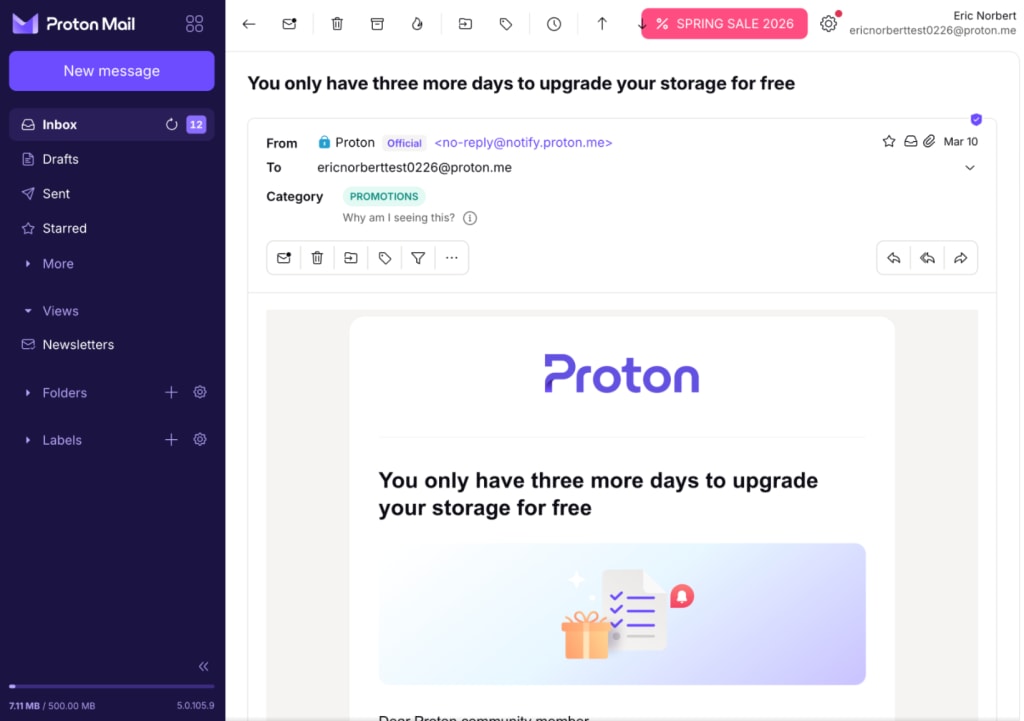
How to tell if your data is encrypted after a password reset
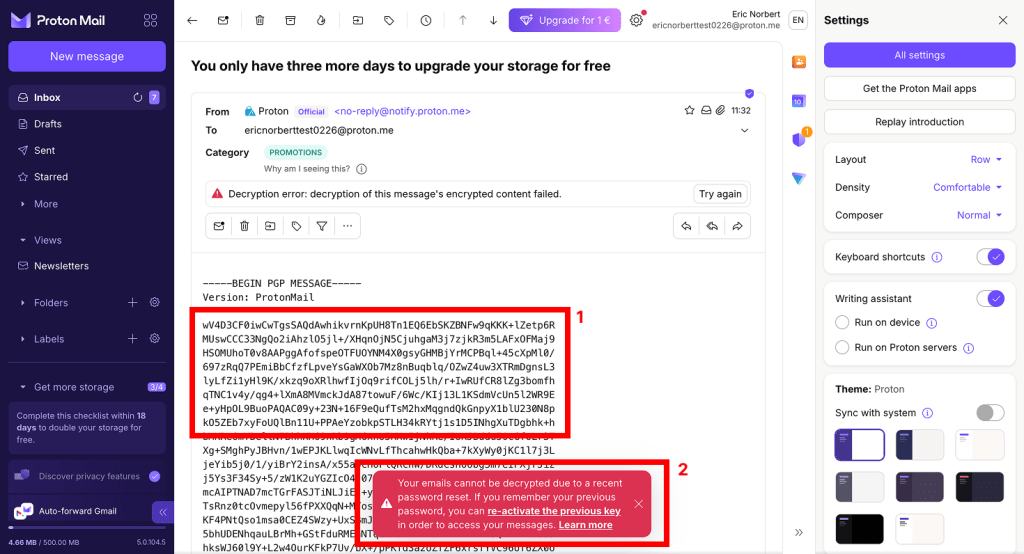
- You’ll see random letters, numbers, and symbols where your data should be, or you won’t be able to open your data at all.
- In Proton web apps, you’ll get a notification when you try to open encrypted data, saying that the data is not available or couldn’t be decrypted.
Here’s an example from the Proton Mail web app:
How to recover encrypted data after a password reset
To restore encrypted data, you’ll need one of the following data recovery options enabled:
- Device data backup
- Recovery phrase
- Recovery file
- Your old password
You’ll need to have set up your data recovery option before your password reset. If you don’t remember setting up a data recovery method, try device data backup. This is enabled by default on Proton web apps.
Recover your data with device data backup
Just sign in to any Proton web app on a trusted device. This will decrypt your data, giving you full access to your emails, calendars, contacts, files, and passwords.
A trusted device is any device that you stay signed in on.
Learn how device-based recovery works
Recover your data with your recovery phrase
- Sign in to account.proton.me and open your account settings.
- Select Recovery from the sidebar.
- You should have a notification titled Some of your encrypted data is locked. Select Unlock data.

4. Stay in the Phrase tab. Enter your 12-word recovery phrase and select Recover data.

Your data is recovered.
Recover your data with your recovery file
- Sign in to account.proton.me and open your account settings.
- Select Recovery from the sidebar.
- You should have a notification titled Some of your encrypted data is locked. Select Unlock data.
4. Go to the File tab and click Browse. Find your file and upload it.

5. Once uploaded, click Recover data.

6. Enter your password and click Authenticate.
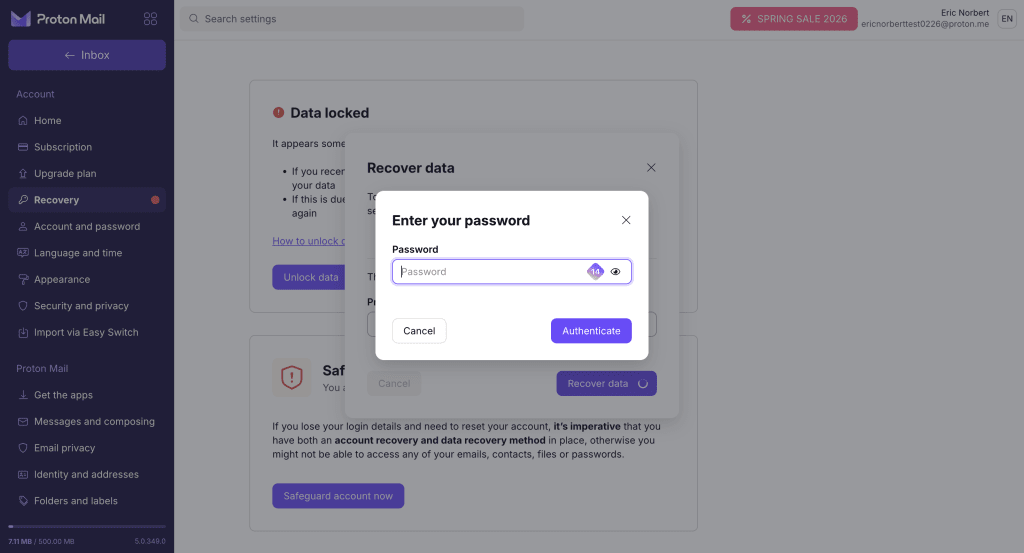
All done. Your data is restored.
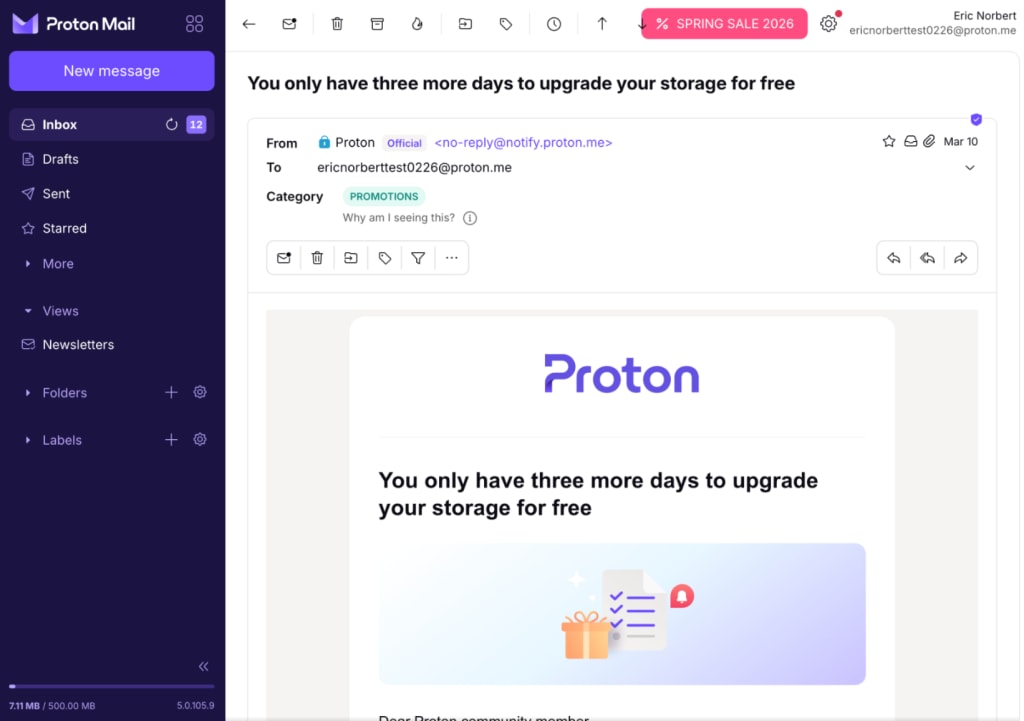
Recover your data with contact-assisted data recovery
How to unlock your data using contact-assisted data recovery
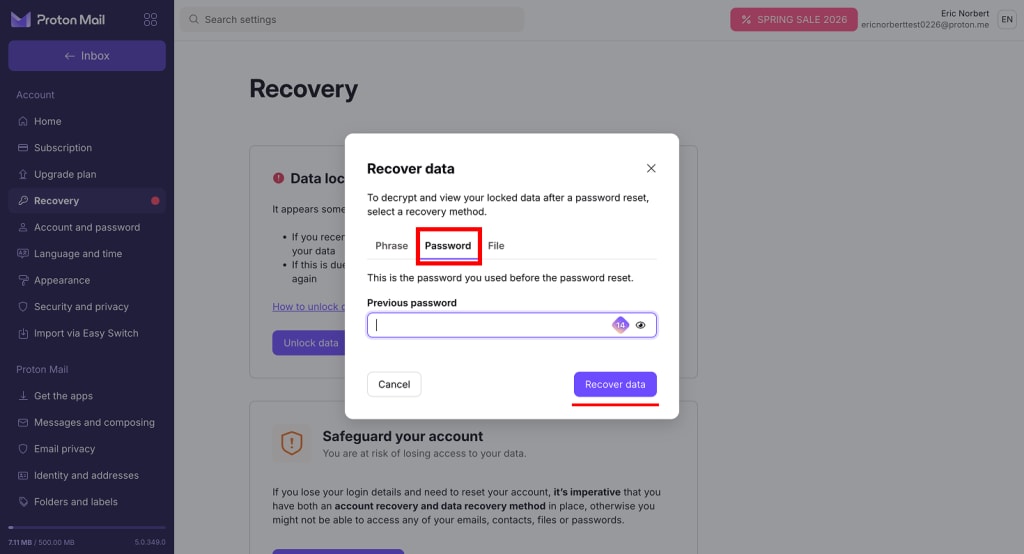
Recover your data using your old password
- Open your account settings (Settings ⚙️ → All settings).

- Select Recovery from the sidebar, then click Unlock data.
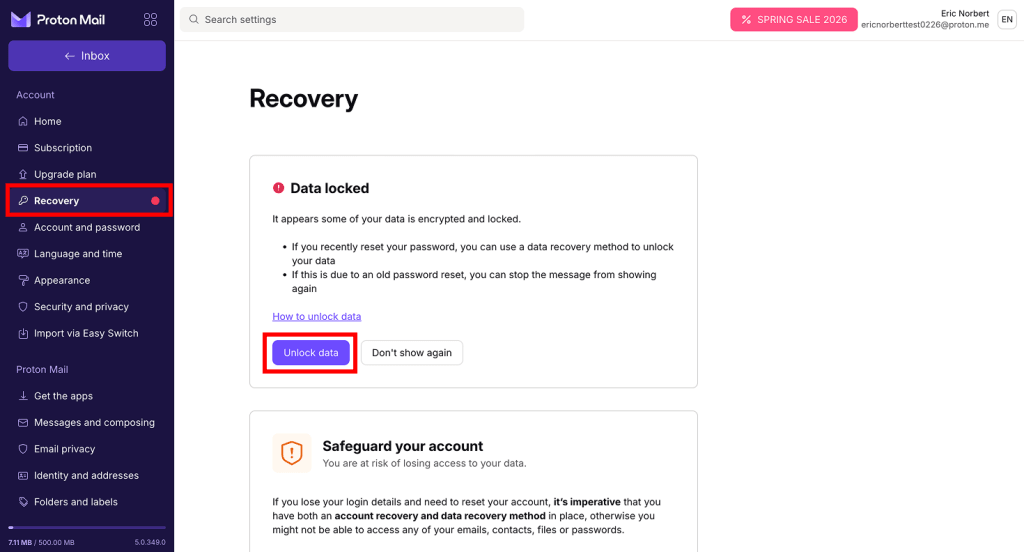
- Select the Password tab. Enter your old password and click Recover data.
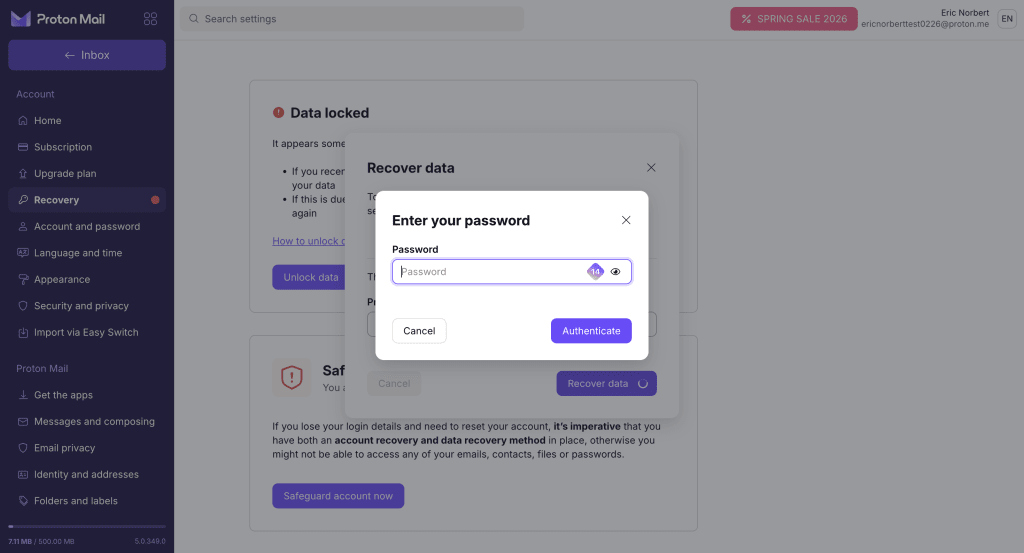
- You’ll be asked for your password. Enter your new password this time, then click Authenticate.
All done. Your data is restored.
Note: If you use a password manager, check whether it stores a history of previously used passwords. Recovering an older Proton account password may allow you to decrypt and restore access to data that became inaccessible after a password reset.
What to do after recovering your data
Some recovery methods can only be used once. Once you’ve recovered your account, you should regenerate any recovery methods that can’t be used a second time.
- Open your account recovery settings (Settings ⚙️ → All settings → Recovery)
- Scroll to the recovery method (or methods) you used.
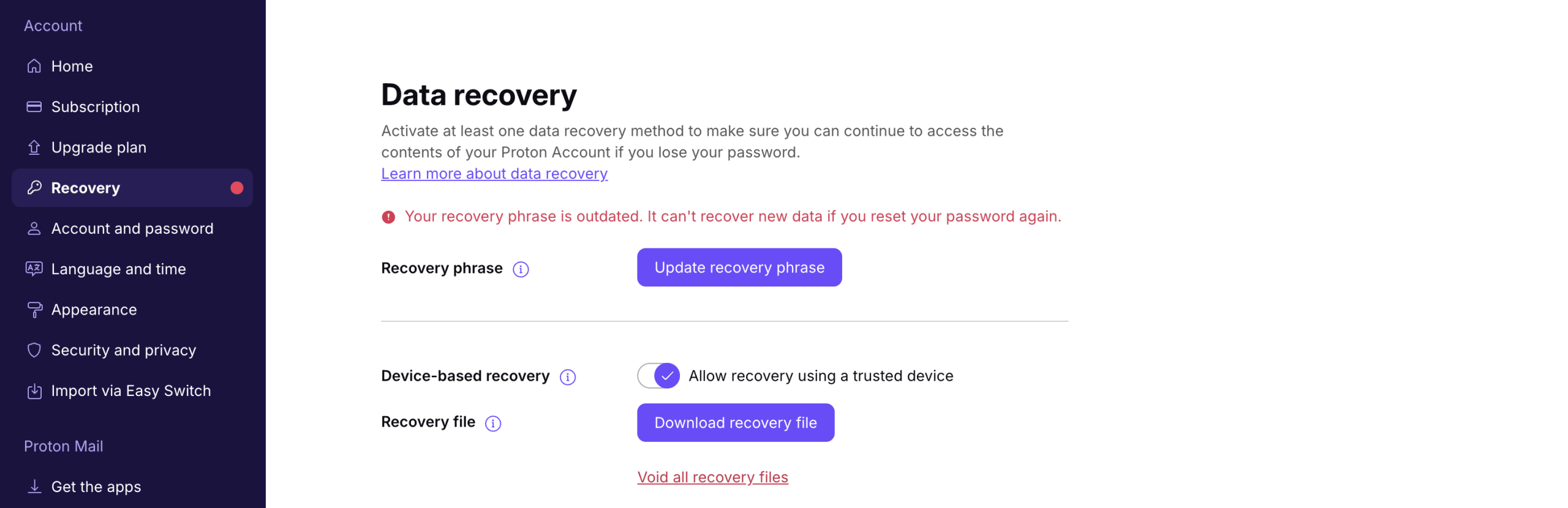
If your recovery method can’t be used again, you’ll see a notification saying Your <recovery method> is outdated.
- Click Update recovery method and follow the steps to update your recovery method.
Data recovery and two-password mode
All data recovery methods work for two-password mode — even if you lose both passwords.